How to Book a Class
Updated October 1, 2026
Step by step, using a group pilates class as the example. The screenshots show the page in Polish, as clients of a studio in Kraków see it; on a phone it looks the same in a narrow column.
1. Pick a class in the schedule
On the studio's page open the Schedule tab and switch to List. Next to a group class you see how many places are left: "8 of 8 left". A class with no places left is marked "Booked". Press Book.

2. Check the day and time, choose how to pay
At the top is a strip of days; a dot marks the days with classes. Below it is How would you like to pay?:
| Option | What it is |
|---|---|
| Single visit | Only this class, at the single price |
| Pass (here "8 visits") | You buy a pack, and this class becomes the first one |
Under Choose a time you see the class time and the places left ("8 left"). Press Confirm at the bottom.
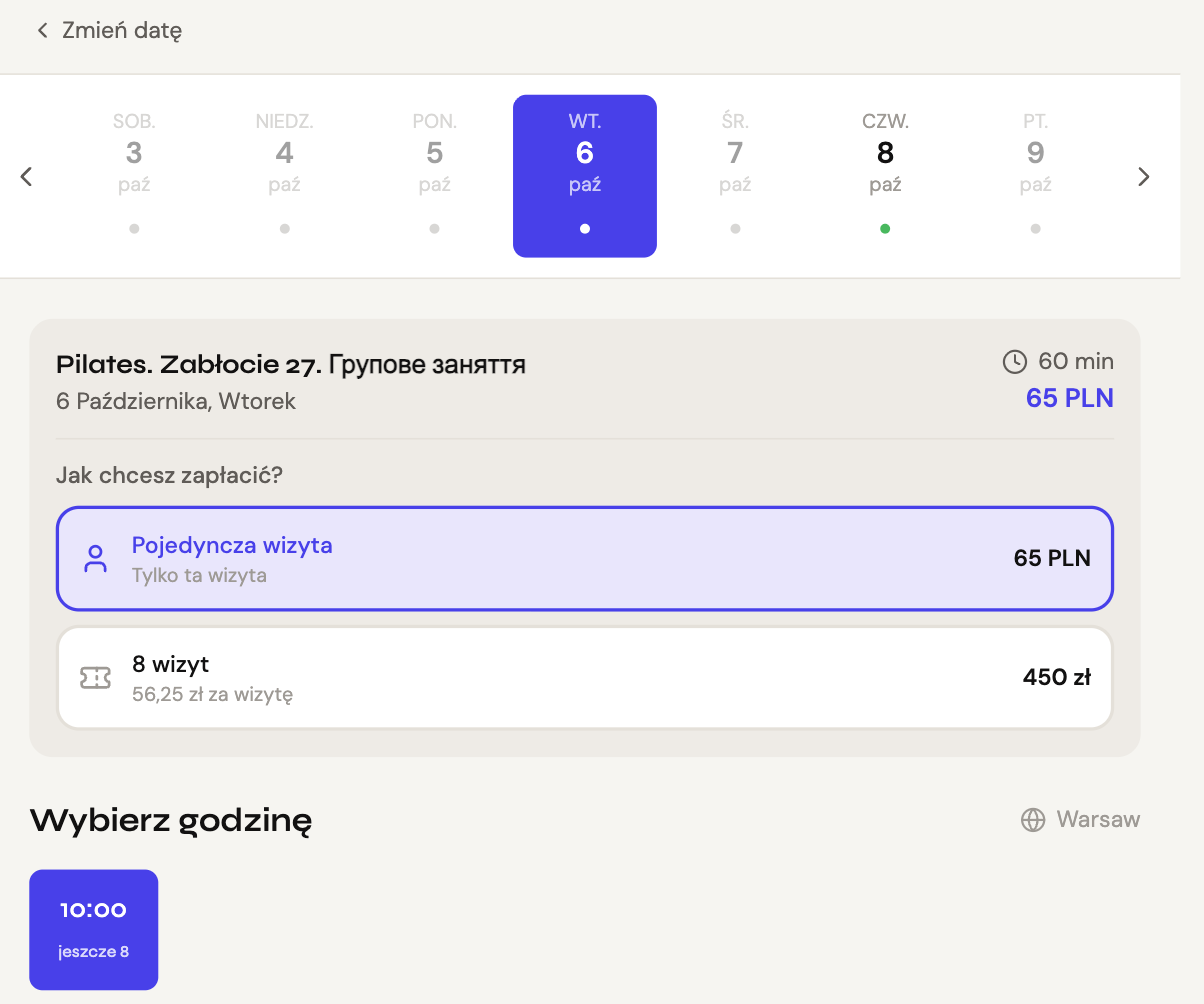
Tip: If you already have a pass with this studio, after you sign in it appears among the payment options and the class comes off it.
3. Your details and payment
The last screen shows the class, the date and the studio's cancellation rule (here, free up to 12 hours before the start). Choose a payment method the studio has turned on (card, BLIK, Przelewy24) and enter your first name, last name, e-mail and phone.
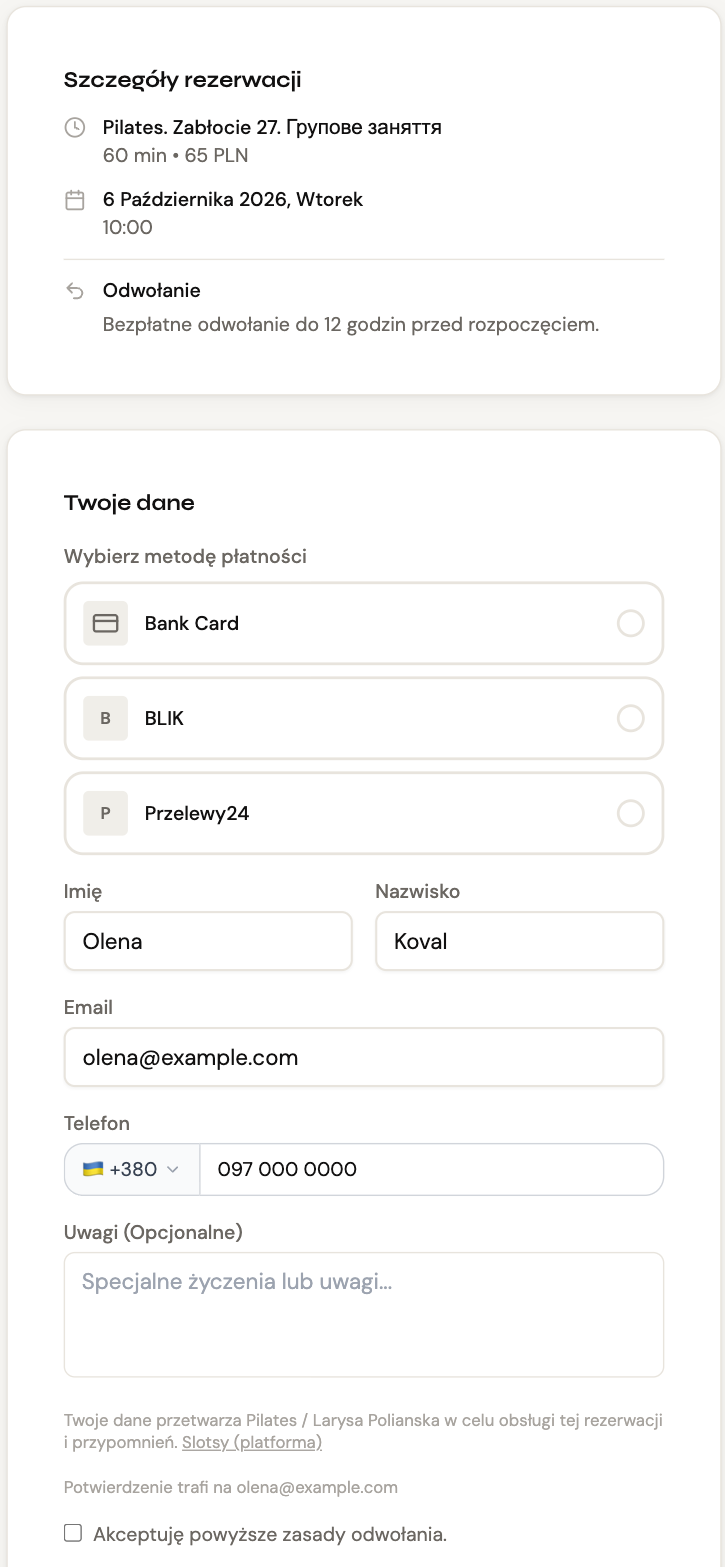
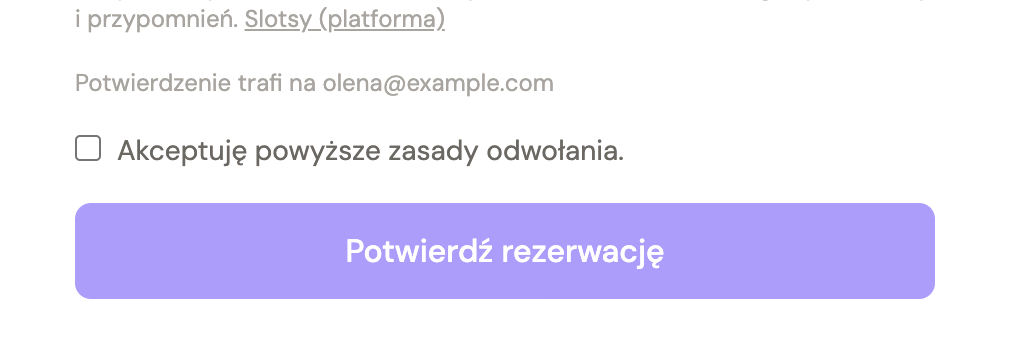
Tick I accept the cancellation rules above. and press Confirm booking.
Do I need to sign in
For a single visit, no: your details are enough. To buy a pass, yes: Slotsy e-mails you a link (there is no password), or you sign in with Google. After signing in you return to the same step.
4. Confirmation and reminders
The confirmation comes by e-mail. Reminders come by e-mail 24 hours and 1 hour before the class. The studio may add an SMS an hour before; on your booking's page you can connect Reminders in Telegram. For push on your phone, turn on Push notifications in your account, under Notifications.

Tip: On an iPhone push works only with Slotsy on the Home Screen: Safari → Share → "Add to Home Screen".
5. Bookings: cancel or move
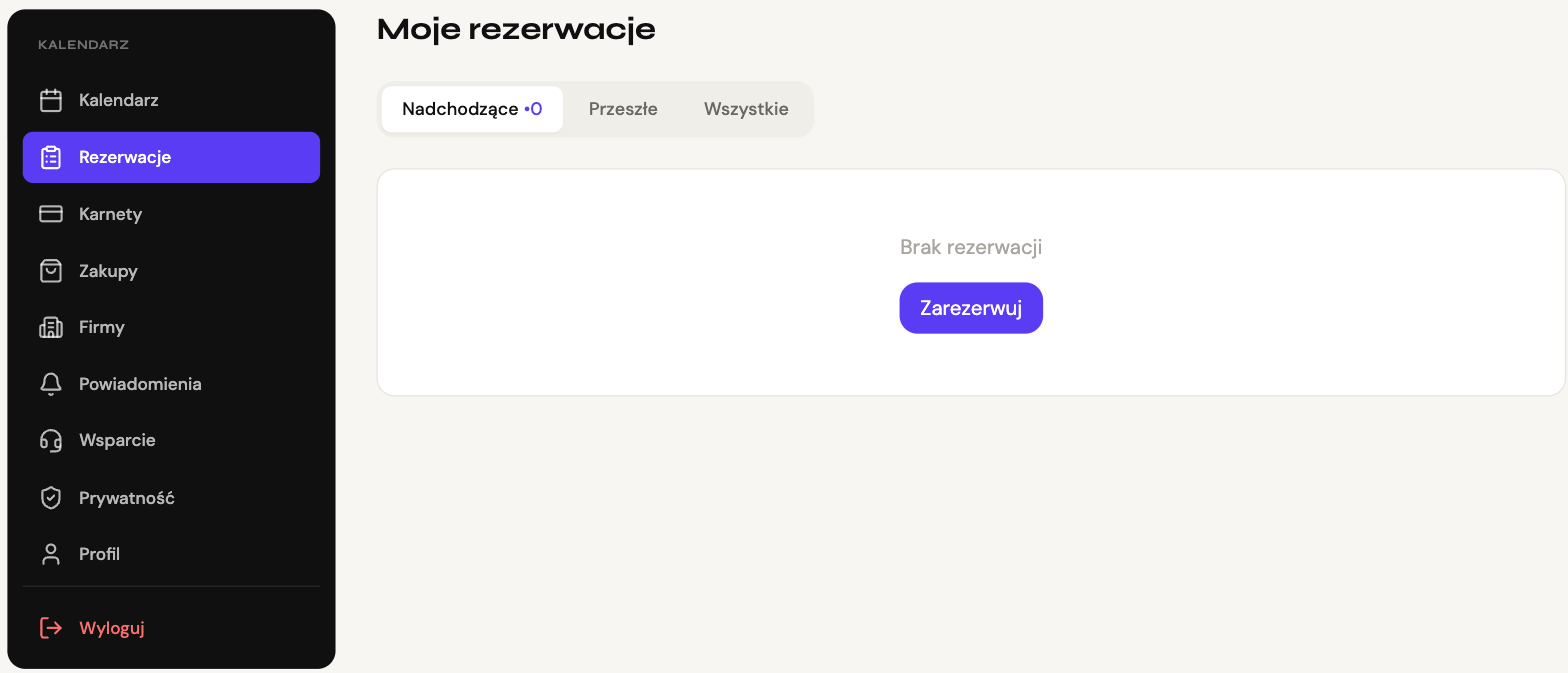
In your account open Bookings. The Upcoming tab lists your classes. The clock icon on a booking's card moves it to another free time; open the booking to cancel it.
6. Memberships: what is left and what it went on
In Memberships each card shows visits used and left and the date the pass runs to. Use takes you to the studio's page.
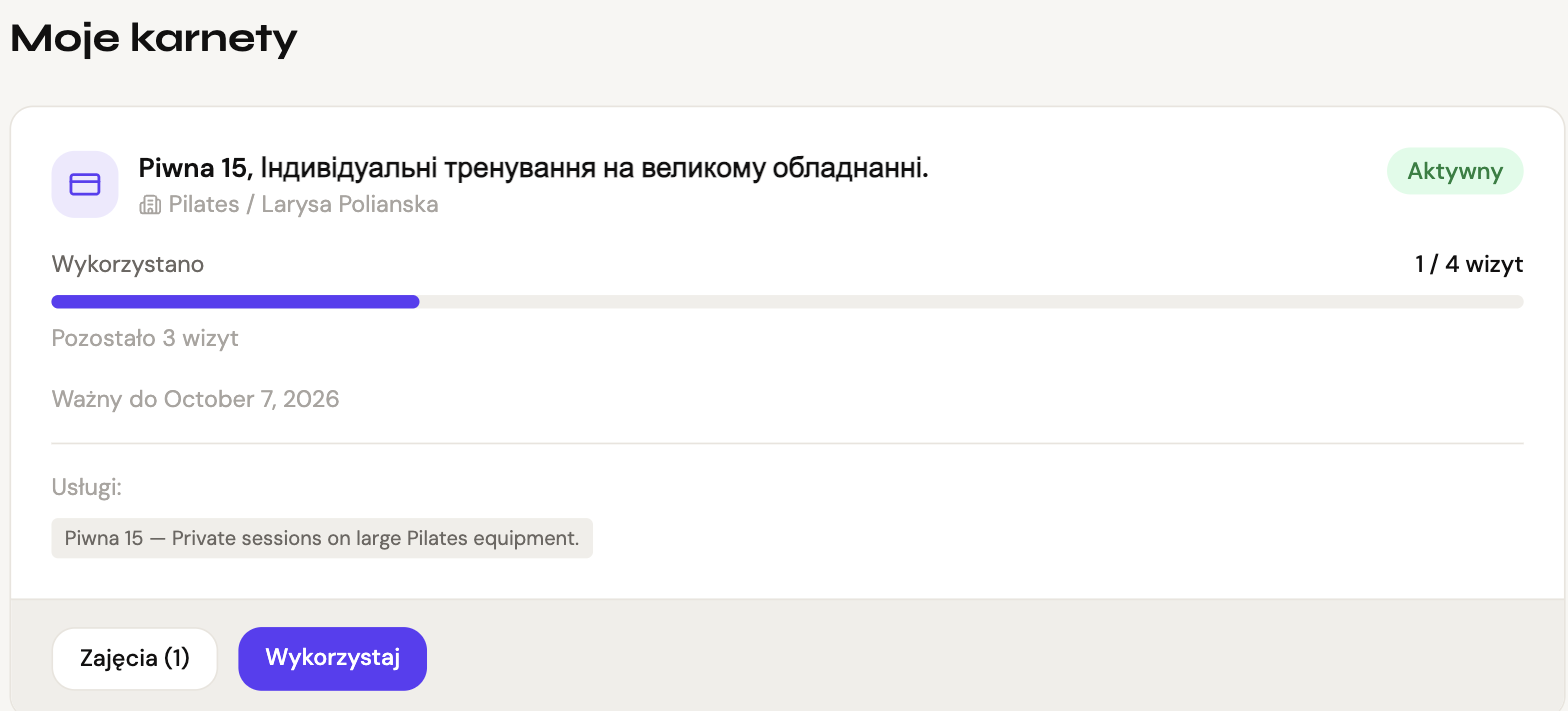
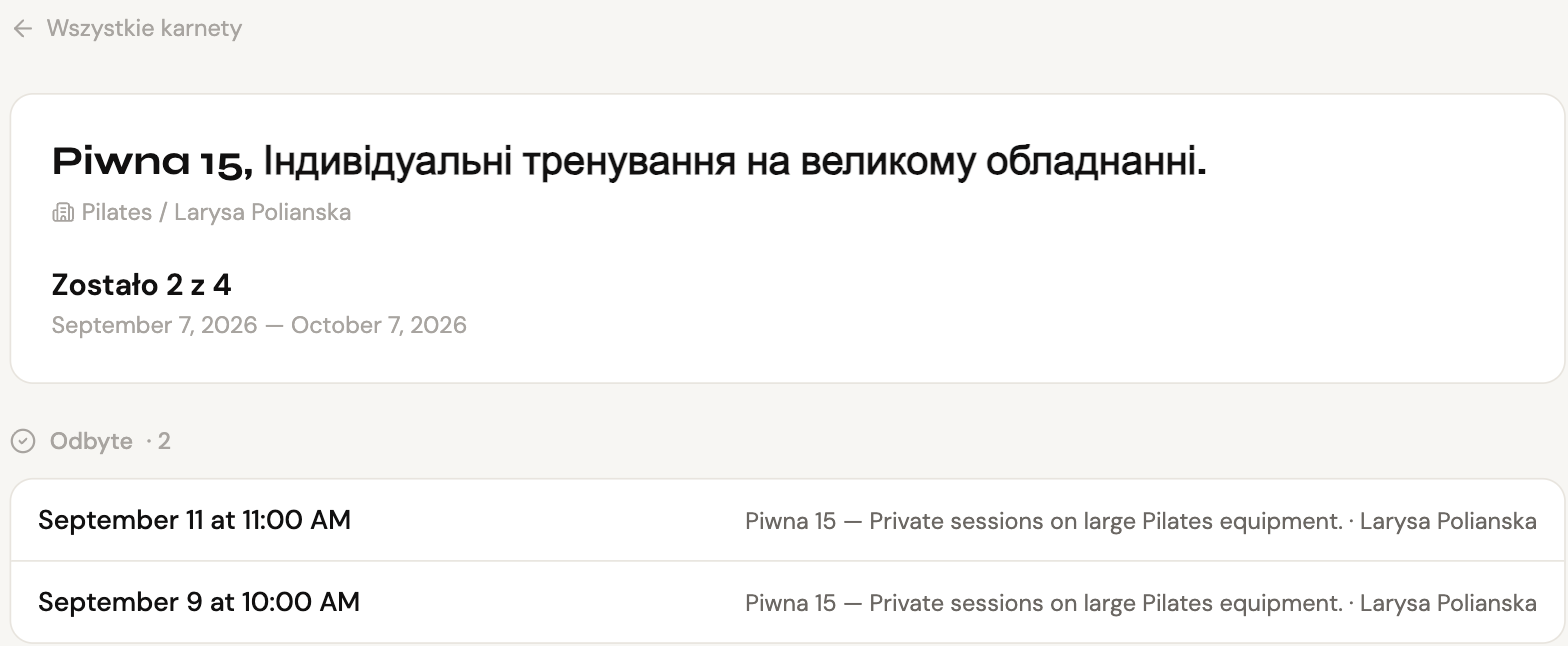
Classes (n) opens the pass's page: "2 of 4 left", the period, and every class: booked, attended, written off by the studio.
Related
- Reminders in Telegram — instead of SMS
- Buying a pass — with a booking or on its own
- Cancel Booking — rules and returns